
Ignoring a component in a BOM
You can ignore an OSS component in the BOM of a project version so that any associated risks are excluded from the risk calculations. Ignoring a component is considered a component adjustment. Therefore, if you choose to apply persistent edits, ignoring a component will apply to all versions of the project.
When you ignore an automatically-added OSS component from a project version BOM, it will be moved to the Match Review page for further action. This ensures that users can review and address these components later. Notably, ignored components will continue to be excluded from risk calculations even if the code where they were discovered is rescanned to update the BOM.
How to ignore one or more components in a BOM
To ignore a single component in a BOM:
-
Log in to Black Duck SCA.
-
Select the project name using the Watching or My Projects dashboard. The Project Name page appears.
-
Select the version name to open the Components tab.
-
Click
 and select Ignore to open the Ignore Component dialog box.
 -
Click Ignore.
The component is relocated to the Match Review page, will not be included in the risk calculations for the project version, and will not be displayed in the BOM.
To ignore multiple components in a project version BOM:
- Display the project version BOM. Ensure you are in the Components view.
-
Check the box next to any number of components.
-
Click the Bulk Actions button.
Select Ignore.
The Bulk Action: Ignore dialog box appears.
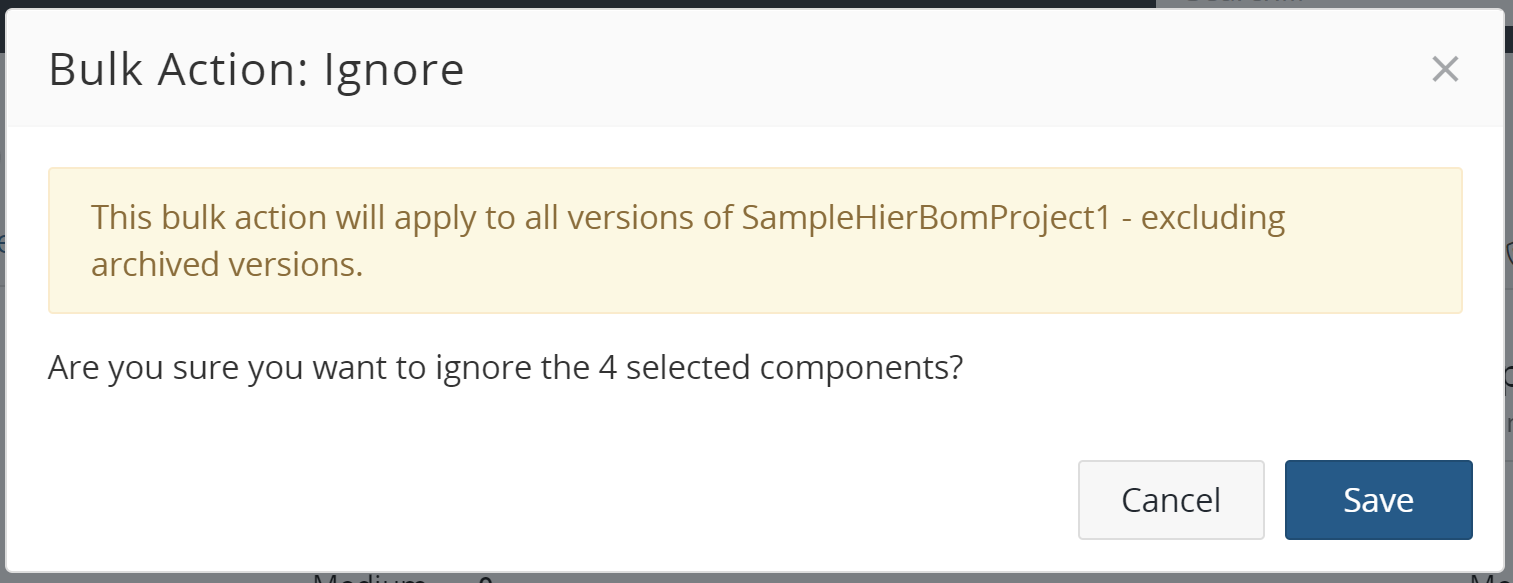
- Click the Save button to perform the action or the Cancel button to exit the dialog box.
How to unignore one or more components
To unignore a single component in a BOM:
-
Log in to Black Duck SCA.
-
Select the project name using the Watching or My Projects dashboard. The Project Name page appears.
-
Select the version name to open the Components tab.
-
Click Match Review.
-
Click
and select Ignore to open the Ignore Component dialog box. - Click Ignore.
The component is relocated to the Bill of Materials page.
To unignore multiple components in a project version BOM:
-
Display the project version BOM. Ensure you are in the Components view.
-
Click Match Review.
-
Check the box next to any number of components.
-
Click the Bulk Actions button.
-
Select Unignore.
The Bulk Action: Unignore dialog box appears.
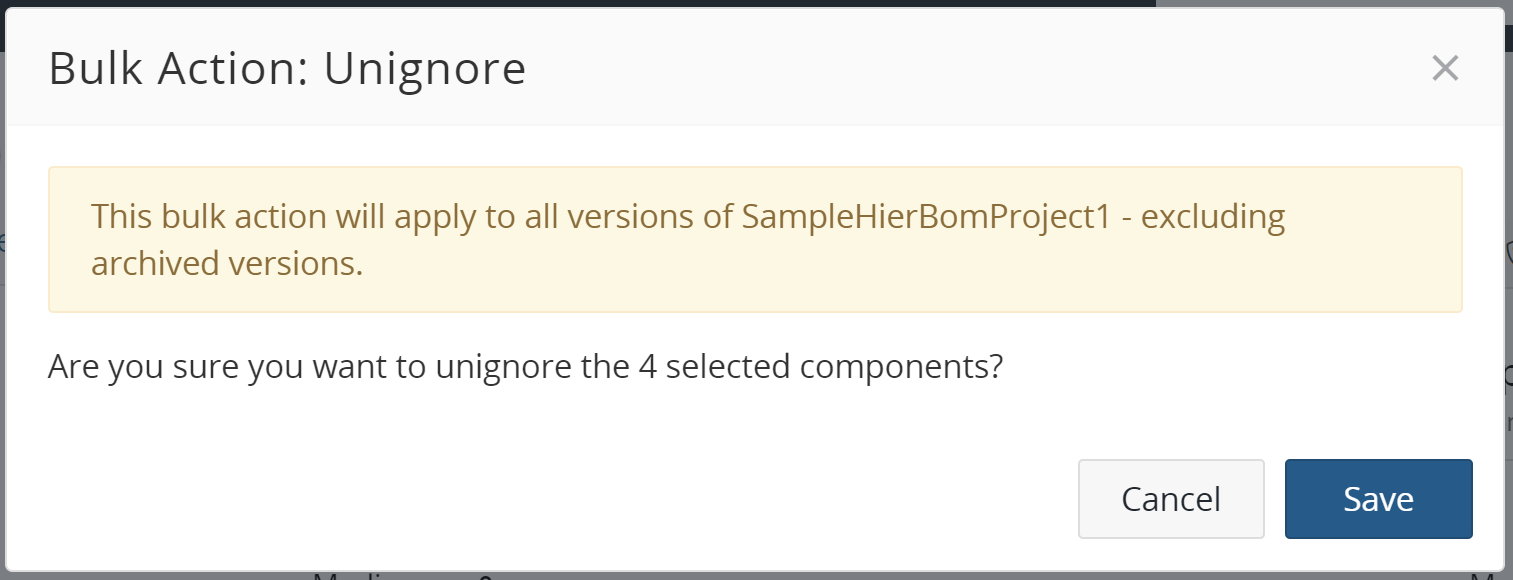
How to view ignored components
To view ignored components:
-
While in the Components tab of the project version BOM, click Match Review.
-
Select Ignored from the filters list.

The table displays all ignored components.