
Managing user access tokens
Black Duck SCA provides the ability for you to generate one or more “tokens” for accessing Black Duck SCA APIs. These tokens are intended to replace the use of username/password credentials in integration configurations, such as Jenkins or for the Scan Client CLI. With access tokens, if a security breach occurs, the user’s credentials (which might be their SSO or LDAP credentials) are not directly compromised.
Note the following:
-
Access tokens can only be created by the current user.
-
Access tokens are tied to a user's account; therefore, an access token has the same role as the user who created the token.
-
A user can have multiple tokens. Each token must have a unique name.
-
Access tokens do not expire, but can be purged after a set period of inactivity.
-
If a user is inactivated, their tokens are invalidated.
Generating an access token
-
Log into Black Duck SCA.
-
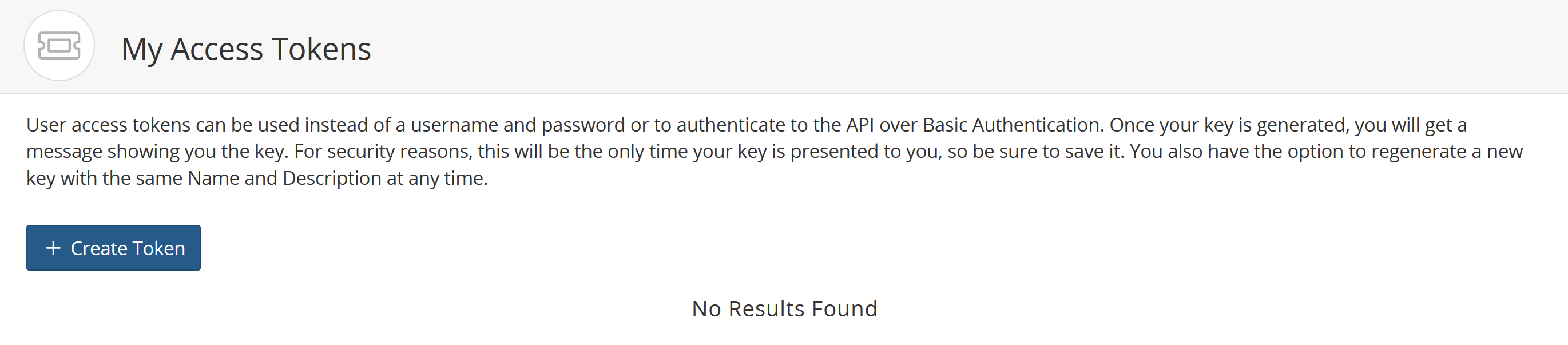
From the user menu located on the top navigation bar, select My Access Tokens.
The My Access Tokens page appears.
-
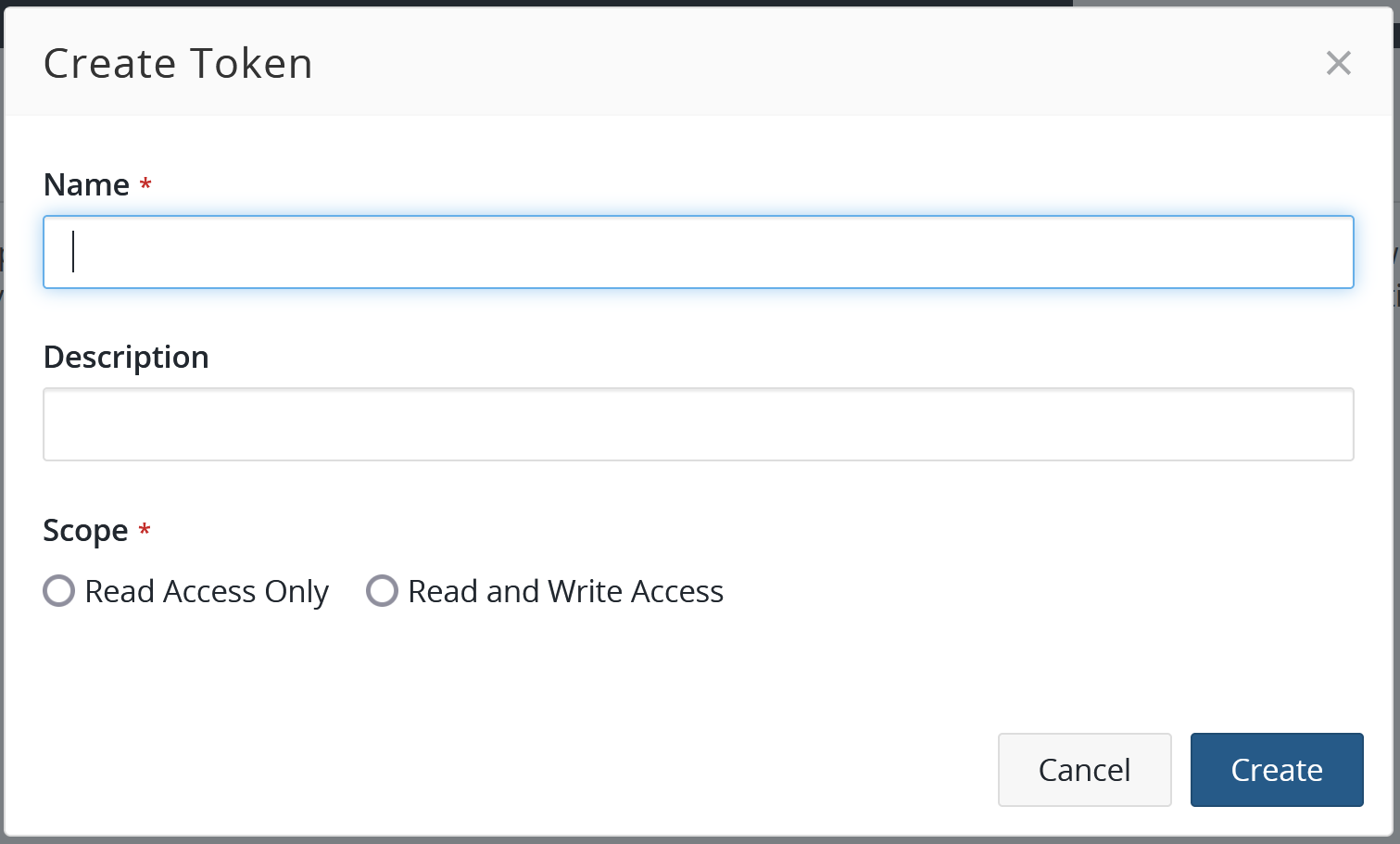
Click Create New Token. The Create New Token dialog box appears.
-
Enter a name, description (optional), and select the scope for this token (read or read and write access). You can only select one access for a token.
-
Click Create.
The Access Token Name dialog box appears with the access token.
-
Copy the access token shown in the dialog box. This token can only be viewed here at this time. Once you close the dialog box, you cannot view the value of this token.
-
Click Close.
Regenerating an access token
You can regenerate a new access token which provides a different key for the same name, description, and access.
-
Log into Black Duck SCA.
-
From the user menu located on the top navigation bar, select My Access Tokens.
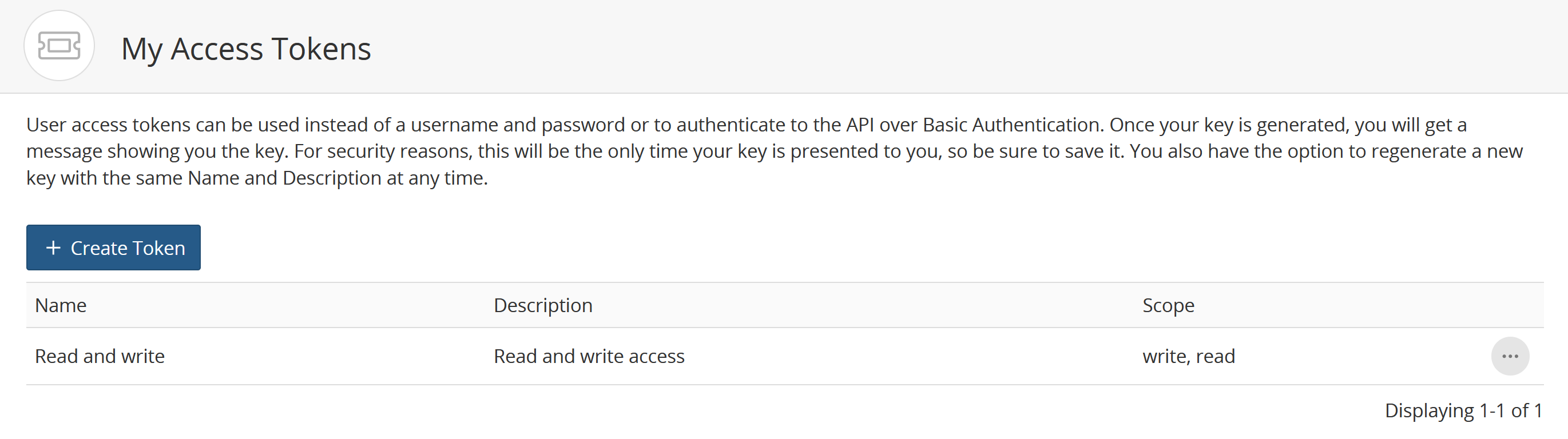
The My Access Tokens page appears.
-
Click
 in the row
of the token you want to regenerate and select Regenerate.
in the row
of the token you want to regenerate and select Regenerate.The Regenerate User Access Token dialog box appears.
-
Click Regenerate to confirm.
The Access Token Name dialog box appears with the new access token.
-
Copy the access token shown in the dialog box. This token can only be viewed here at this time. Once you close the dialog box, you cannot view the value of this token.
-
Click Close.
Deleting an access token
-
Log into Black Duck SCA.
-
From the user menu located on the top navigation bar, select My Access Tokens.
The My Access Tokens page appears.
-
Click
in the row
of the token you want to remove and select Delete.The Delete User Access Token dialog box appears.
-
Click Delete to confirm.