
Project Version Auto Actions
Project Version Auto Actions allows you to automate the management of project versions based on defined criteria. This functionality allows users to efficiently handle version accumulation, particularly in environments with version limits, disk space constraints, or database performance issues.
Key capabilities include:
- Automatic Progression to LTS: Users can configure project versions to automatically transition to Long-Term Support (LTS) status, ensuring ongoing maintenance and security.
- Automatic Deletion of Obsolete Versions: Users can enable the automatic deletion of project versions that are no longer needed, helping to maintain a clean and efficient workspace while preventing resource overuse.
This feature is particularly beneficial for users generating multiple project versions over time, helping to enhance overall efficiency and project organization.
How to enable or disable project version auto actions
To enable or disable project version auto-actions:
-
Log in to Black Duck with the System Administrator role.
-
Click
 →
System Settings.
→
System Settings. -
Click Data Retention.
-
Click Project Version Auto Actions.
- Check or uncheck the Enable Project Version Auto Actions checkbox.
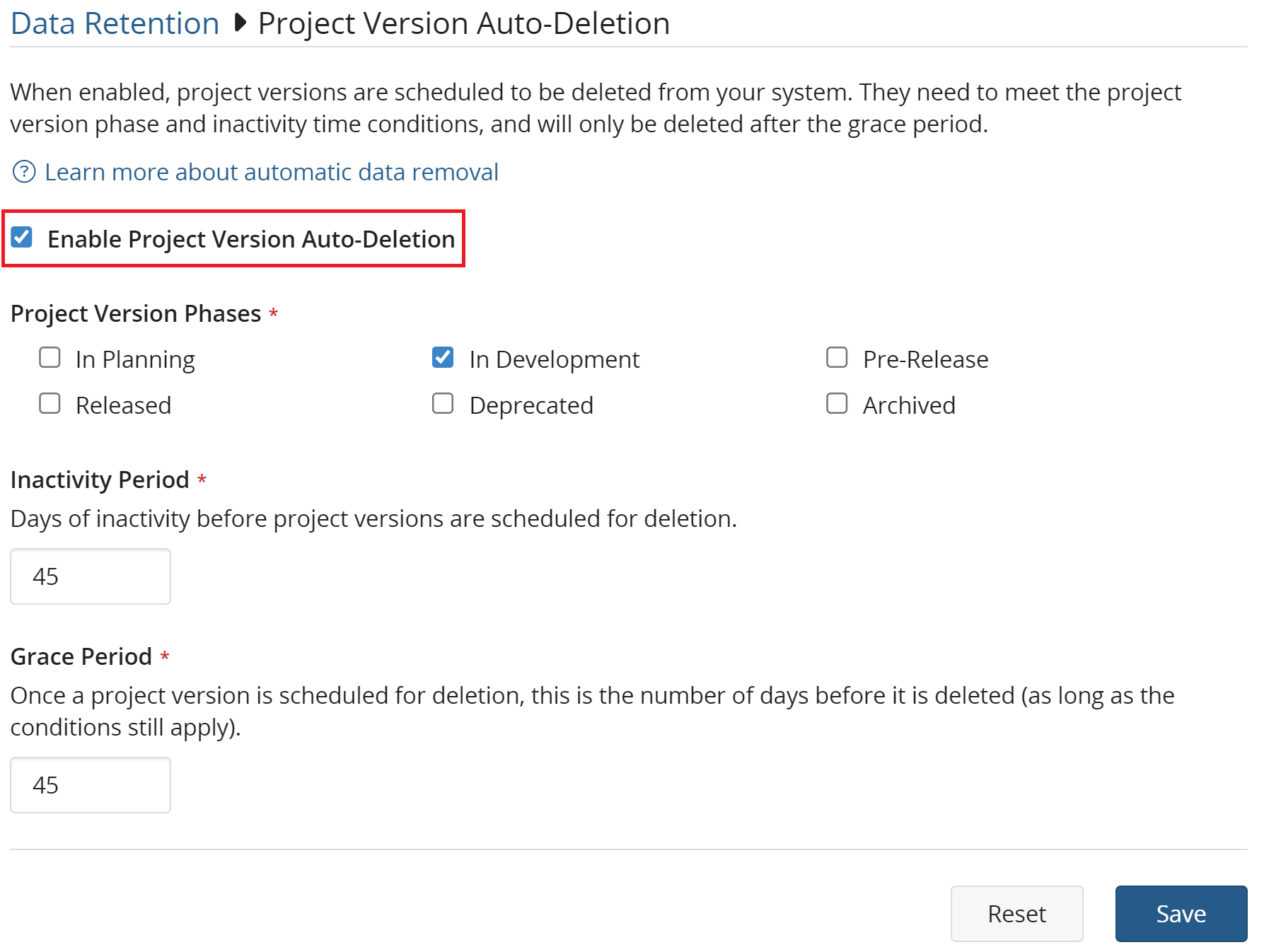
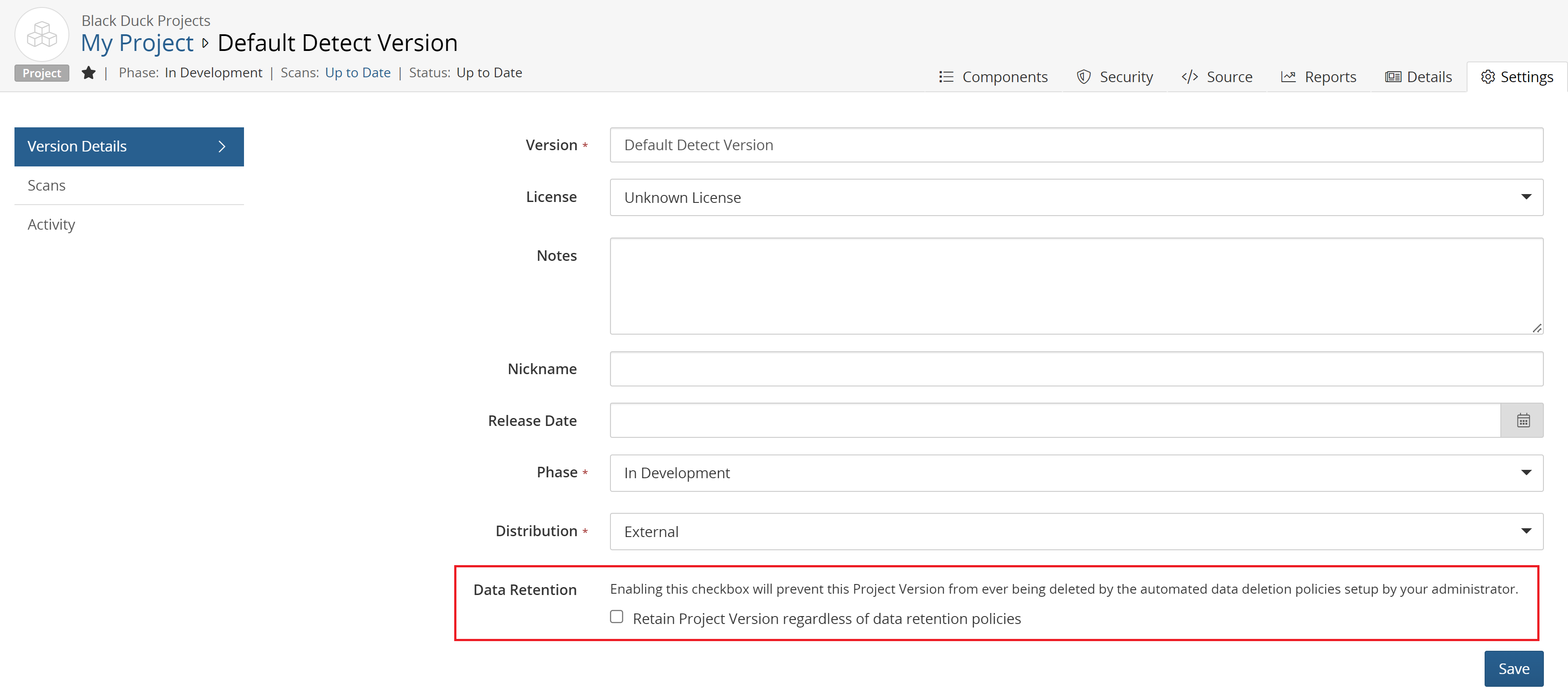
Enabling this feature will cause new data retention fields on the project version's settings page to be displayed.
Project version auto action settings
Phase: Defines what project version phases are applicable to the auto-deletion process.
Inactivity Period (days): Defines the time period in which a version has to be inactive for it to get scheduled for the selected retention action in the future. Inactivity is defined as no scans and no edits for the project version including project version settings, component edits, vulnerability remediations and policy overrides. The default value is 45 days and maximum is 365 days.
Grace Period (days): Defines how far in the future project versions will be scheduled for the desired retention action (i.e. how long the warning icon shows up in the UI before the project version is actually deleted). The default value is 45 days and maximum is 365 days for active projects, 1825 days for LTS.
Retention Actions: The action that will be automatically executed. Selection options are:
-
Delete: Delete this project version.
-
Do nothing: Do not take any action for this project version.
-
Convert to LTS: Convert this project version to Long-Term Support.
Criteria for project version auto action
The following criteria is used to determine if a project version is a candidate for auto action:
-
The project version phase matches any of the release phase values set in Project Version Phase Condition.
-
The project version is not a sub-project that is included as a component on other project version’s BOM.
-
The project version is not part of a project in which “Custom scan signatures” are enabled.
-
The project version has been inactive during the timeframe specified in the environment variable.
-
The project version is not protected from auto-deletion on the project version settings UI in the Data Retention section.
Any project versions which fall outside of these constraints will not be tagged for auto action.
Project versions marked for auto action
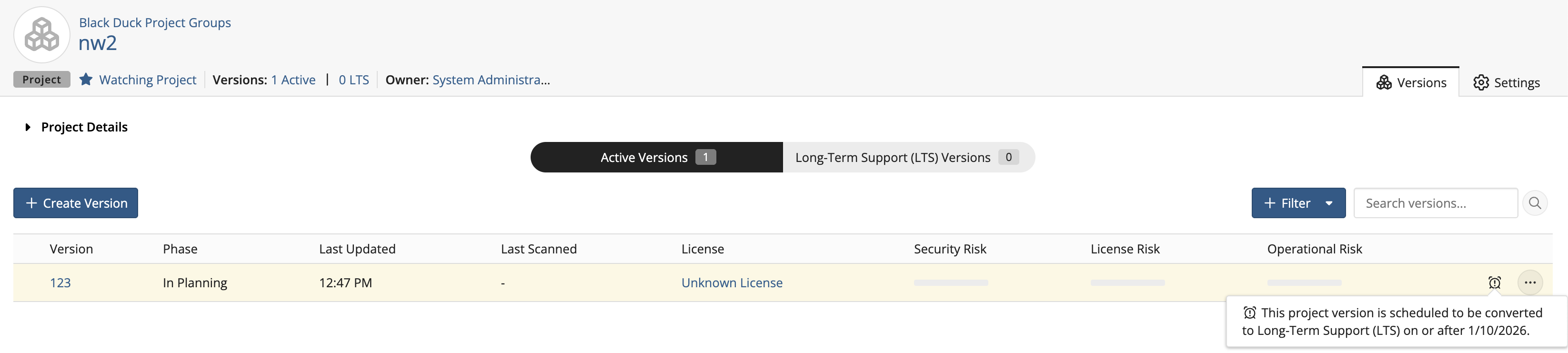
Once a project version is tagged for auto action, a  icon is displayed on the
project's overview screen:
icon is displayed on the
project's overview screen:
-
Project versions marked for auto deletion are highlighted in yellow.
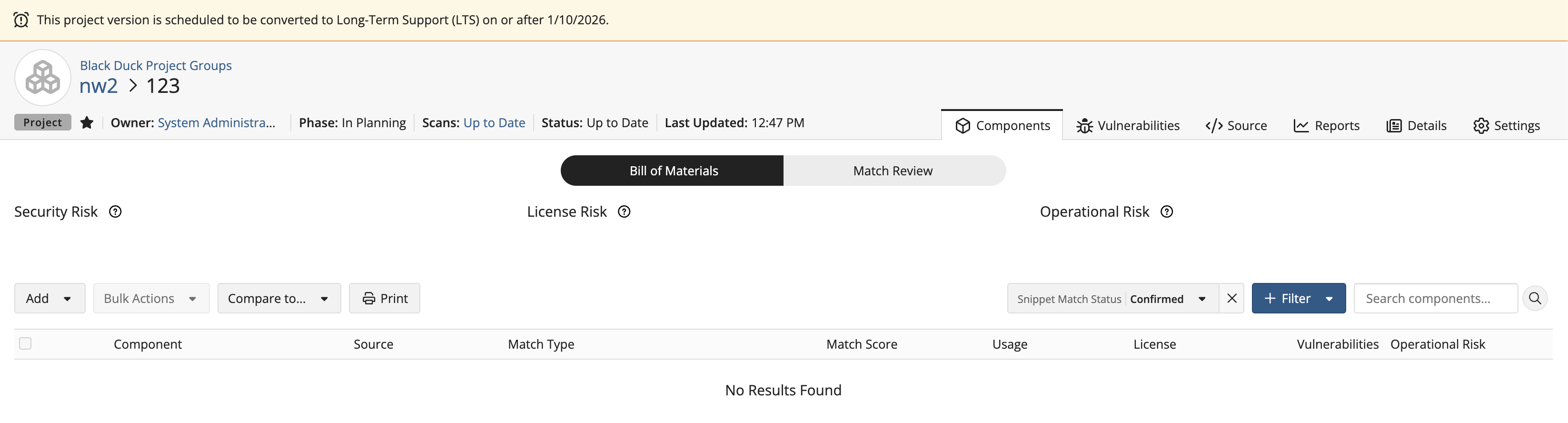
A banner will also be displayed on the top of the project version's BOM page.
-
Project versions marked for auto deletion are highlighted in red.
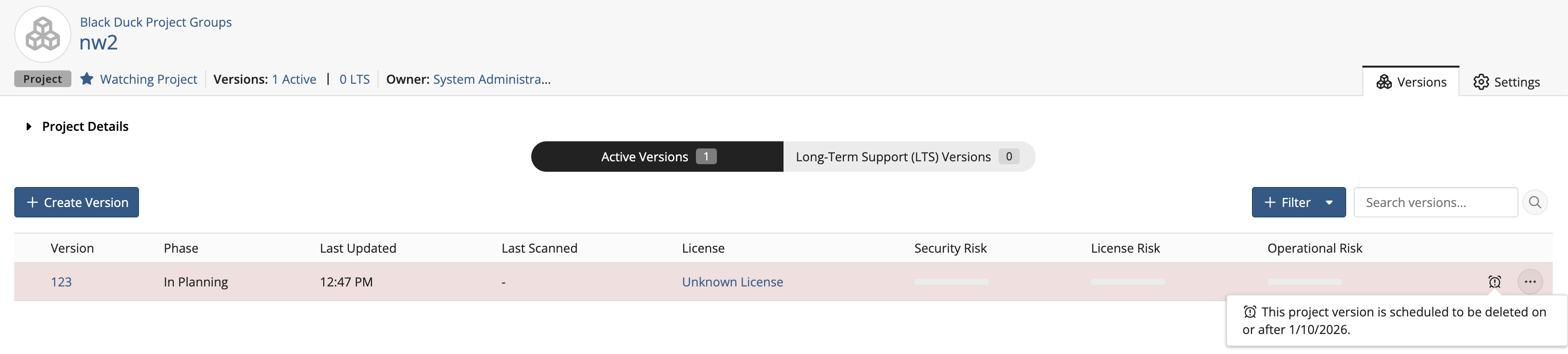
A banner will also be displayed on the top of the project version's BOM page.
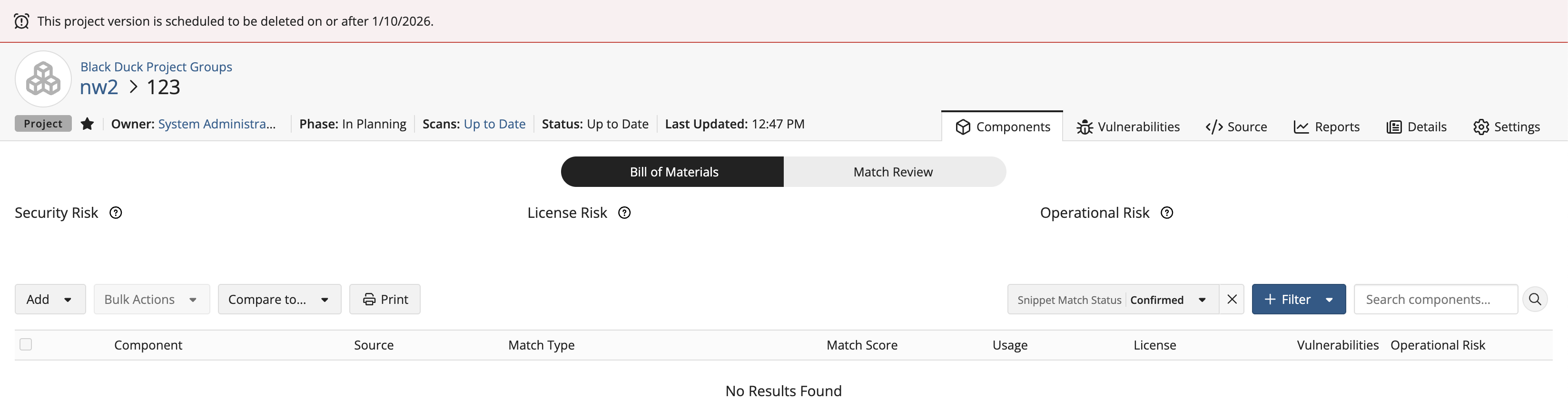
After a project has been flagged for auto action, if it subsequently has activity against it, it will be “unflagged” for the selected auto action and the inactivity counter will start again.
The jobs which sets the auto action status and deletes the project versions runs every 15 minutes.
After project version auto-deletion
Once the elapsed grace period has passed, the project version will be deleted. This will orphan any scans for the project version as they will no longer be associated with a project version. Those scans will be deleted according to the “Cleaning up unmapped code locations” configuration as defined in the install guide (default = 30 days).
Please note, if all project versions for a project are deleted, then the project is also deleted.