
Configuring the Component Match Review Threshold
The Component Match Review process allows for the management of components in the Bill of Materials (BOM) based on match scores during scans. This helps ensure that components requiring further review are identified and addressed appropriately.
Match Score Thresholds:
-
Components with a match score below 4% will not be generated in the BOM.
-
Components with a match score greater than or equal to 4% but less than 90% will be directed to the Match Review page for human review. This allows users to evaluate ambiguous matches before making decisions on their inclusion in the BOM.
To configure the Component Match Score thresholds:
-
Log in to Black Duck SCA with the System Administrator role
-
Click

-
Select System Settings
-
Select Component Match Review
-
Use the slider control to adjust the lower and upper thresholds according to your organization's requirements or policies. The slider can also be adjusted using the keyboard, where the Tab key switches between the two sliders and the arrow keys are used for fine-tuning.
The red slider sets the "remove" threshold, which determines components that will be directed to the Match Review page after the next scan. The yellow slider sets the "warning" threshold, marking components scoring below this threshold as low score, which will be highlighted in gray in the BOM.
Note: It is crucial to configure the thresholds appropriately to avoid losing true positives in your match results.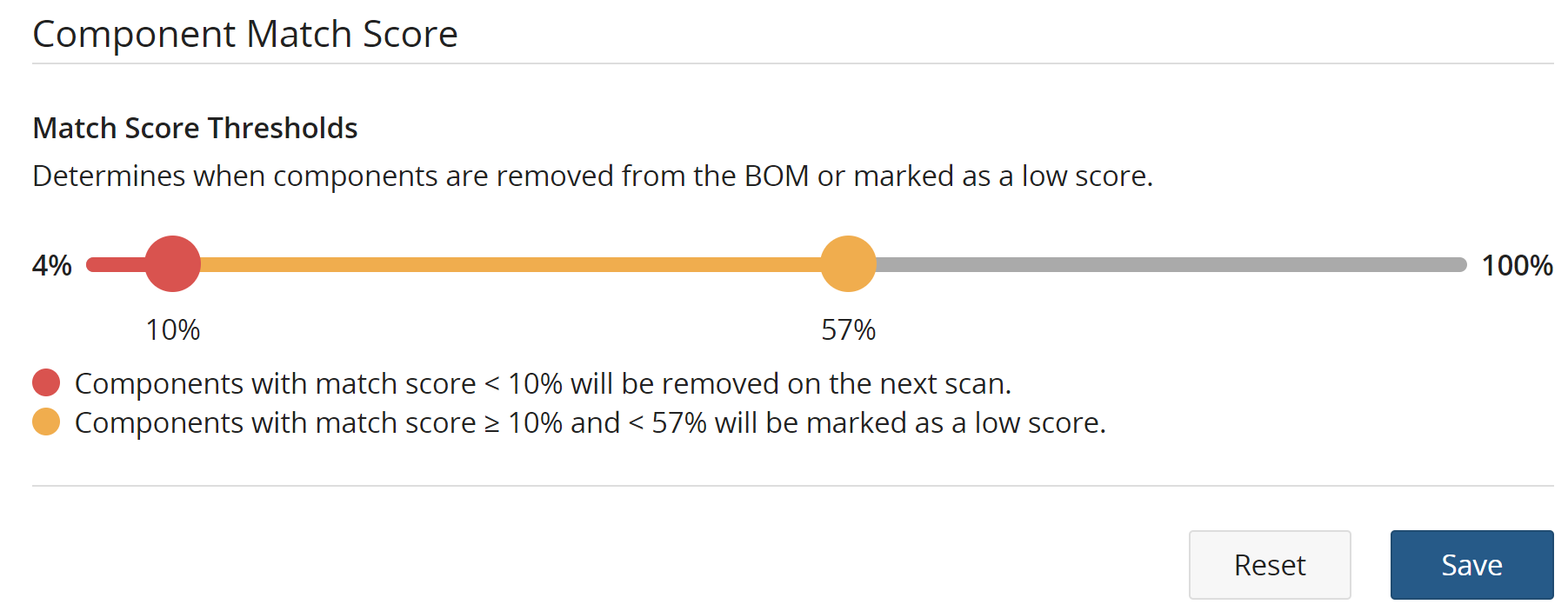
-
Click Save.
Slider control limitations
The slider has specific limitations: the "warning" threshold cannot be lower than the "remove" threshold, and the "remove" threshold cannot be adjusted above the "warning" threshold or set lower than 4%. As a result, components with a match score of less than 4% will not appear in the BOM.